New to Mutt
If you don't have a muttrc, start with the setup guide.
Help
Mutt Desktop supports some NeoMutt keys and configuration options. See the NeoMutt guide for more.
Message list keys
Everyday
- j k
- Next and previous message
- Return
- Open the message
- Ctrl-F
- Show or hide the sidebar
- Ctrl-W, Left/Right
- Resize the message divider
- Ctrl-C
- Stop a pending mail operation
- Ctrl-G
- Cancel a prompt or question
- V
- Show the app version
- ⌘+ ⌘= ⌘−
- Resize message list and preview text; saved across accounts and launches

- ⌘0
- Reset the list to its configured size and the preview to its normal size
- q
- Close the message and return to the message list; in the list, quit
- m
- Compose
- r g L
- Reply, group reply, list reply
- f
- Forward
- s C
- Move or copy to a mailbox
- d u
- Delete, undelete
- N
- Toggle new
- F w W
- Toggle, set, or clear a flag
- v
- List attachments, including IMAP parts with Unicode filenames
- c
- Change mailbox
- .
- List mailboxes with new mail
- G
- Check the open IMAP mailbox now, or fetch POP mail into the configured spool
- Tab
- Go to the next new or unread message
- $
- Write queued changes to the mailbox
- %
- Toggle whether queued changes are written to this mailbox
Patterns and tags
- l
- Limit the index to a pattern
- T
- Tag messages matching a pattern
- Ctrl-T
- Untag messages matching a pattern
- D U
- Delete or undelete messages matching a pattern
- t
- Tag or untag one message
- ;
- Apply the next command to every tagged message
- 1–9
- Jump to a message by number
- o O
- Sort, or sort in reverse
- Tab
- At a prompt, complete an alias, mailbox, file, or pattern (where)
Review before sending
If the SMTP server refuses a message, compose shows its reply and keeps the draft. If delivery is uncertain, check Sent before sending again.
The message list stays usable while a draft is open. Keys go to the window in focus. Choose Window → Return to Draft or press Command-Shift-C to return to the draft. Close it before starting another draft or switching accounts.
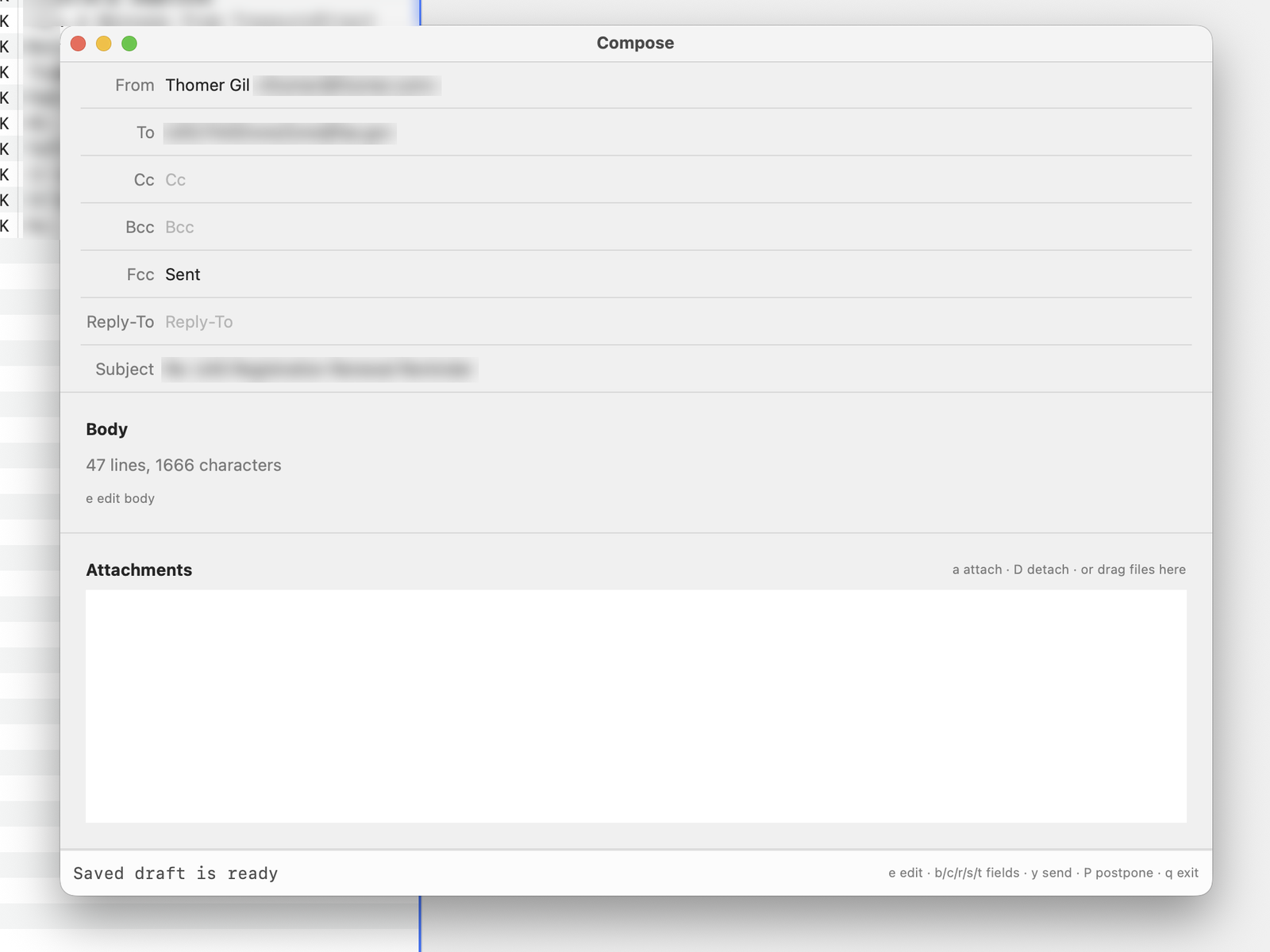
Compose menu
- y
- Send
- P
- Postpone
- e
- Edit the message again
- t c b
- Edit To, Cc, Bcc
- s r
- Edit Subject, Reply-To
- a
- Attach a file; ? at the prompt opens the file browser
- D
- Detach the selected attachment, or a group with its parts
- q
- Quit, postponing or abandoning the message
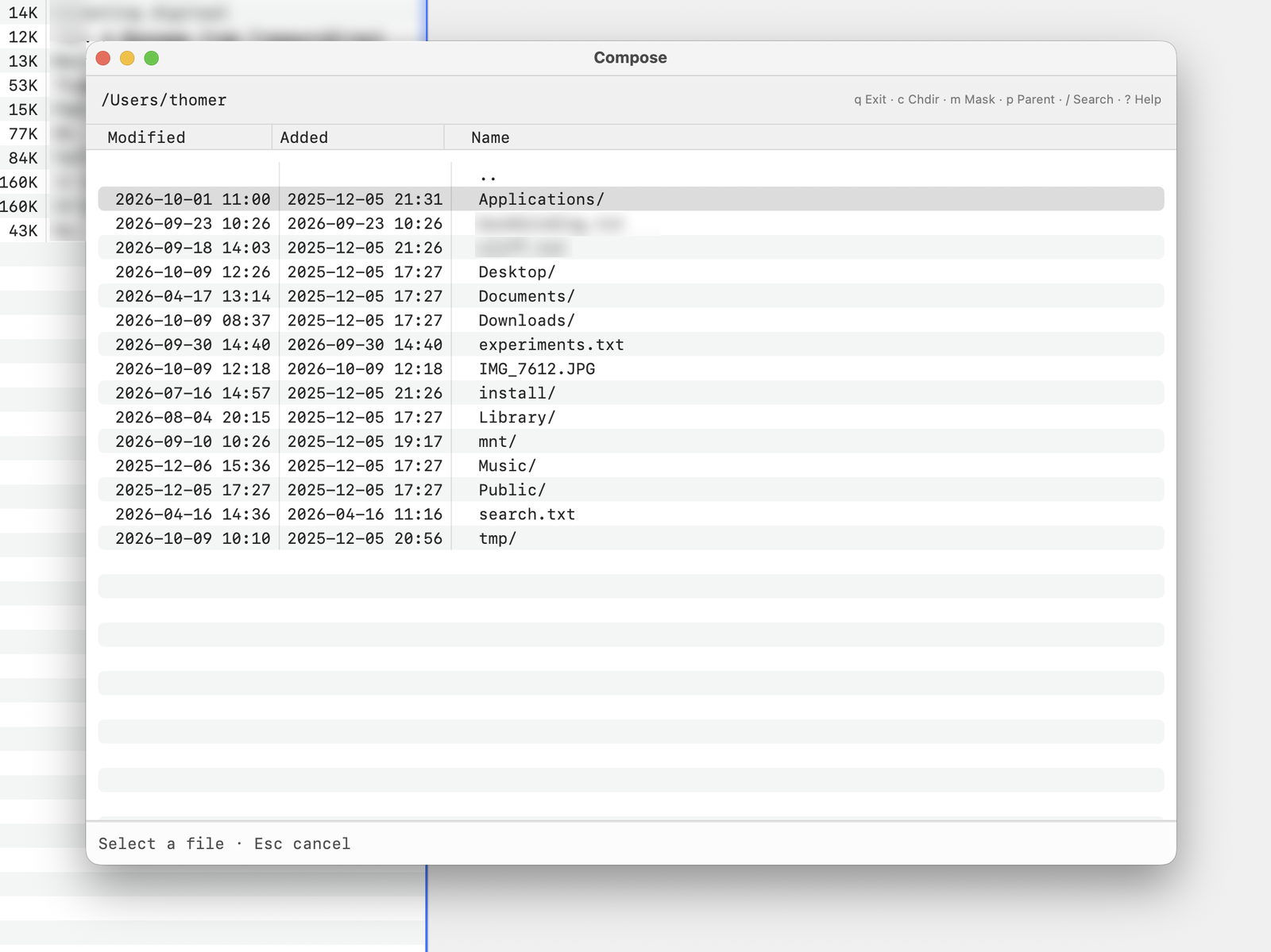
attach-file opens.Attachment file browser
- j k
- Next and previous file
- Return
- Enter a folder or attach the file
- Space
- View the file
- t
- Tag a file
- ; Return
- Attach every tagged file
- p
- Parent folder
- c
- Change folder
- m
- Show only names matching a regular expression
- /
- Search
- q
- Close the browser
Use your muttrc with multiple accountsOnly in Mutt Desktop
Each account names a muttrc and can set variables. Accounts can share one muttrc and differ only in their variables, for example with source ~/.mutt/$LOCAL_CONFIG.
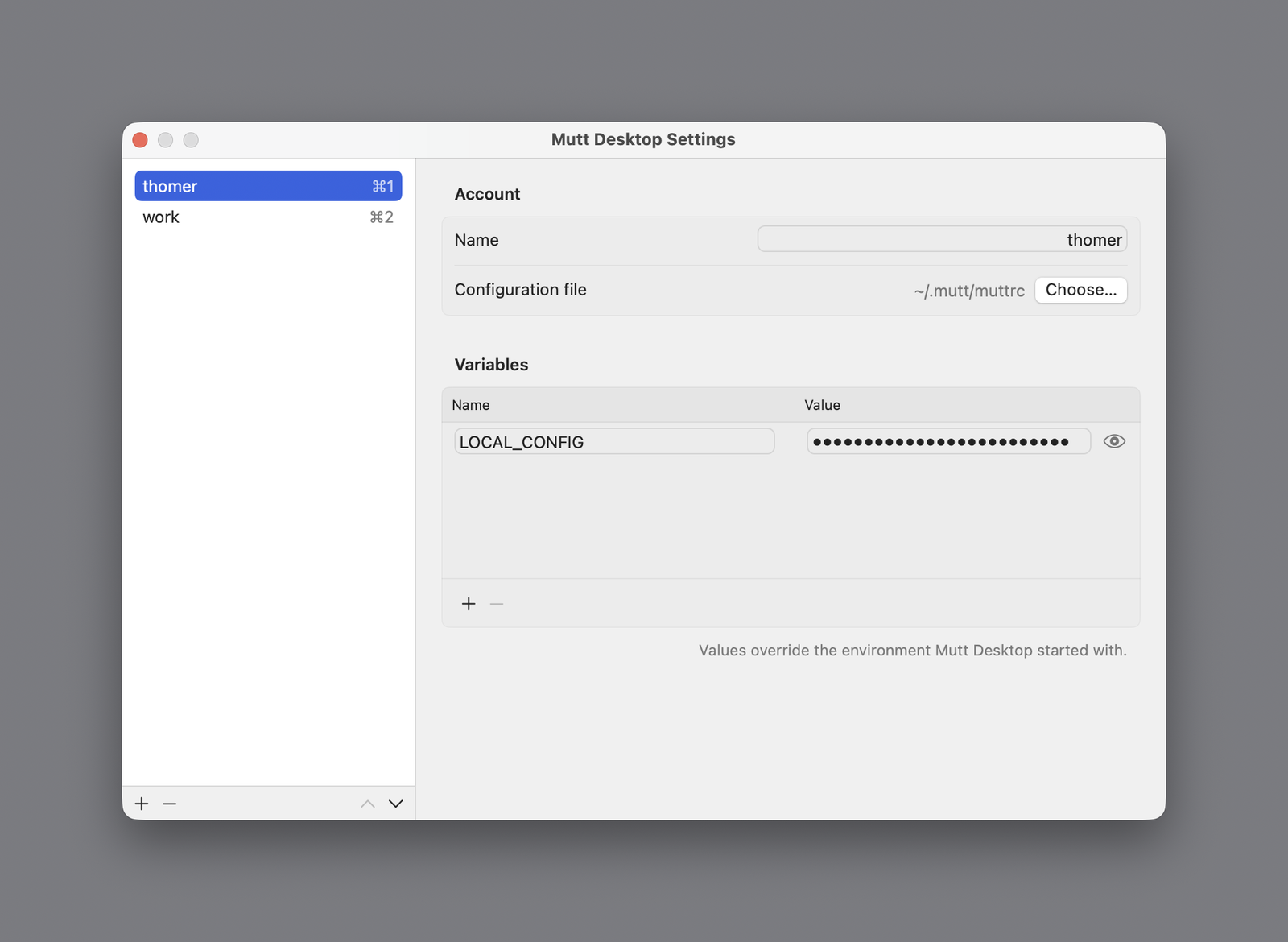
Switching accounts
- ⌘1–⌘9
- Switch to the account at that position
- File menu
- Switch Account lists every account
- ⌘,
- Add, order, and edit accounts in Settings
Launch opens the first saved account. Set my_muttdesktop_start_account=last in that account's muttrc to open the last switched account.
One IMAP server and user per account
Unlike NeoMutt, Mutt Desktop does not combine mailboxes from several IMAP servers or users in one account. Give each server and user its own account: keep shared settings in one muttrc and put each login in a small file that an account variable selects.
# Shared by every account.
set sort = threads
set editor = nvim
source ~/.mutt/$LOCAL_CONFIG
set folder = "imaps://you@mail.example.com/"
set spool_file = "+INBOX"
set from = "You <you@example.com>"
set smtp_url = "smtps://you@mail.example.com"
set folder = "imaps://you@mail.example.org/"
set spool_file = "+INBOX"
set from = "You <you@example.org>"
set smtp_url = "smtps://you@mail.example.org"
In Settings, both accounts read ~/.mutt/muttrc; one sets LOCAL_CONFIG to personal, the other to work.
0.2.1 changes
Highlights since 0.2.0.
NeoMutt behavior
- 64 NeoMutt configuration options gained full support.
- Search, sort, thread, and score messages with more NeoMutt behavior.
- More hooks, macros, and prompt completion work with existing muttrc files.
- IMAP OAuth and compression work with supported NeoMutt settings.
- Recalled drafts retain HTML alternatives and attachments.
Mutt Desktop
- Faster repeat message opens and responsive navigation through large messages.
- Compose in a separate window while reading mail in the main window.
- Choose light or dark HTML mail appearance.
- See new Inbox mail in the Dock or menu bar.
- Resize the message divider with Ctrl-W and arrow keys.
More controls
- Set
my_muttmailbox_dock_badgeormy_muttdesktop_menu_bar_badgeto show new Inbox mail. Click the menu-bar envelope or choose Window → Open Inbox to open it. - Set
my_muttdesktop_html_appearanceto light, dark, or system for HTML mail. - Press Ctrl-W, then Left or Right to resize the message divider. Ctrl-Left and Ctrl-Right work while Control stays held.
- For a NeoMutt Alt-key sequence, press Esc followed by its key.
Support
For support, email support@muttdesktop.com.
Report bugs and request features on GitHub.
Manage license activations in the Polar customer portal.